Customise, move and resize columns
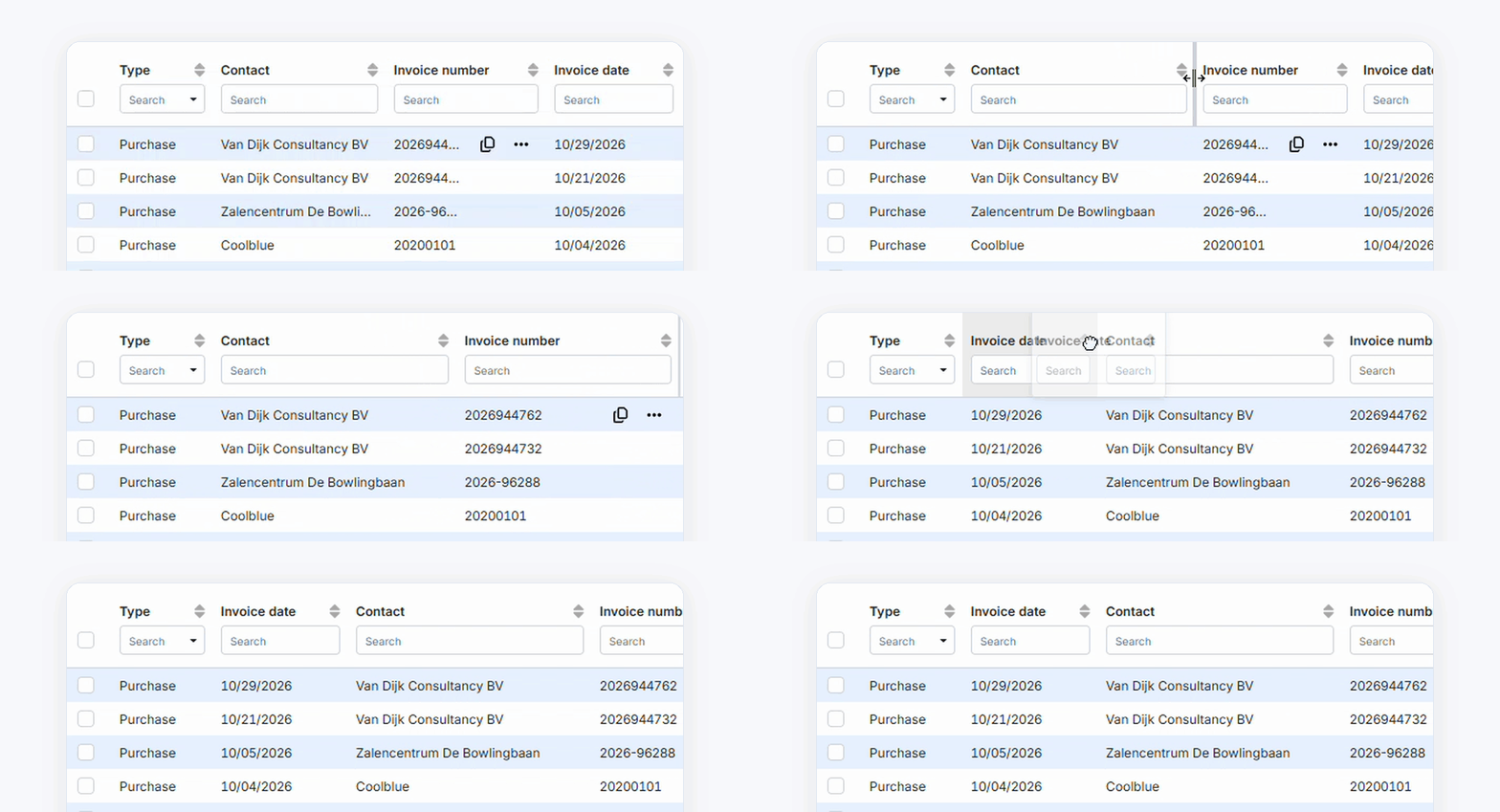
You can now fully customise the overviews in TriFact365. You decide which columns you see, the order they appear in and how wide they are. We have also made a number of other small but valuable improvements.
Show or hide columns
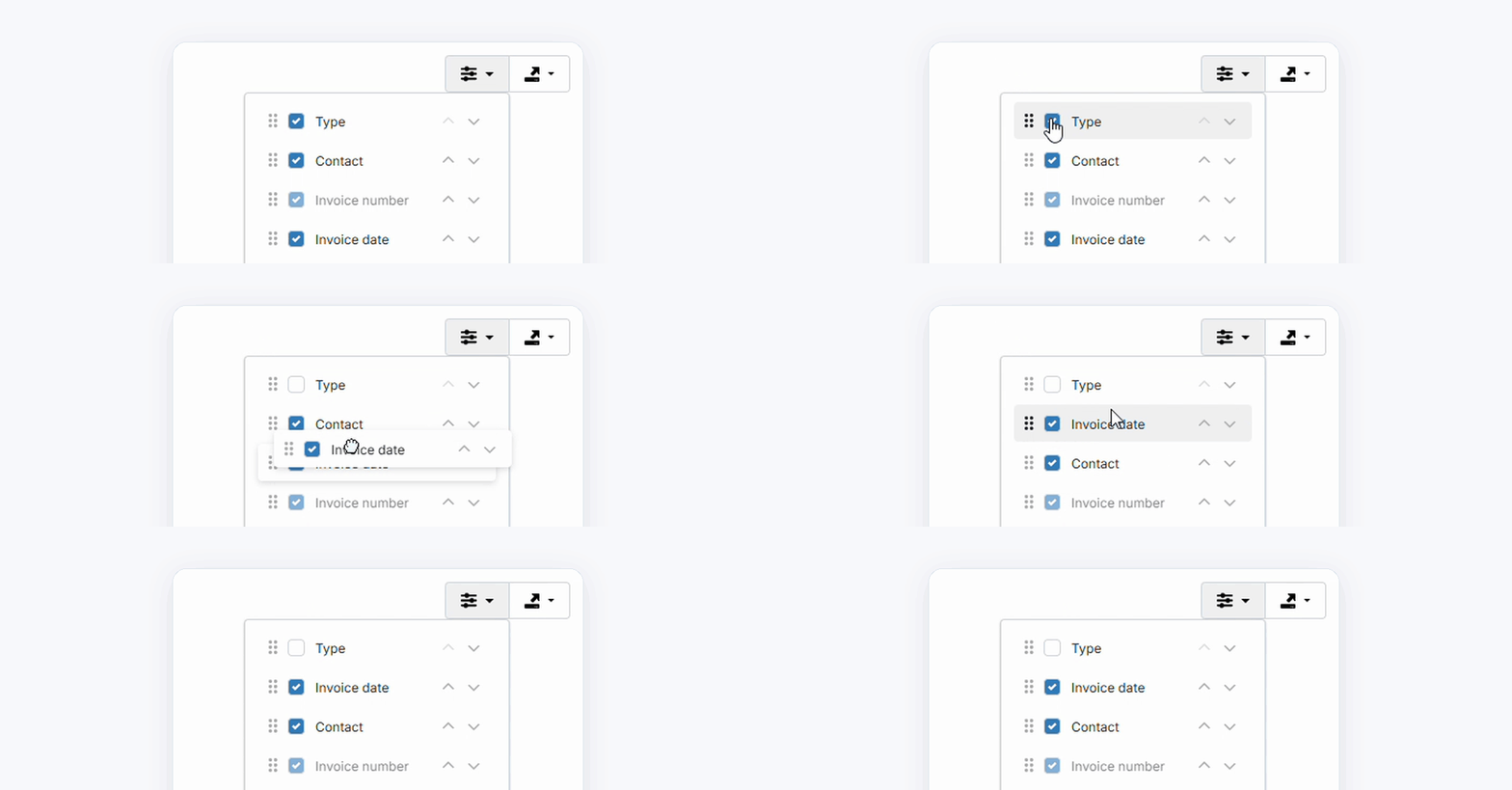
Every overview now has a Display options button in the top right of your screen. Here you can easily show or hide a column. This way, you only see the information you need and your overview stays clear.
Change the order of columns
Want to move a column? Drag the column header in the overview to the left or right. You can also change the order via Display options: drag a column to the right position or move it up and down with the arrows.
Adjust column width
Is a column too narrow or too wide? Move your mouse to the edge of a column header and drag it to the left or right.
Entry lines in the Check screen
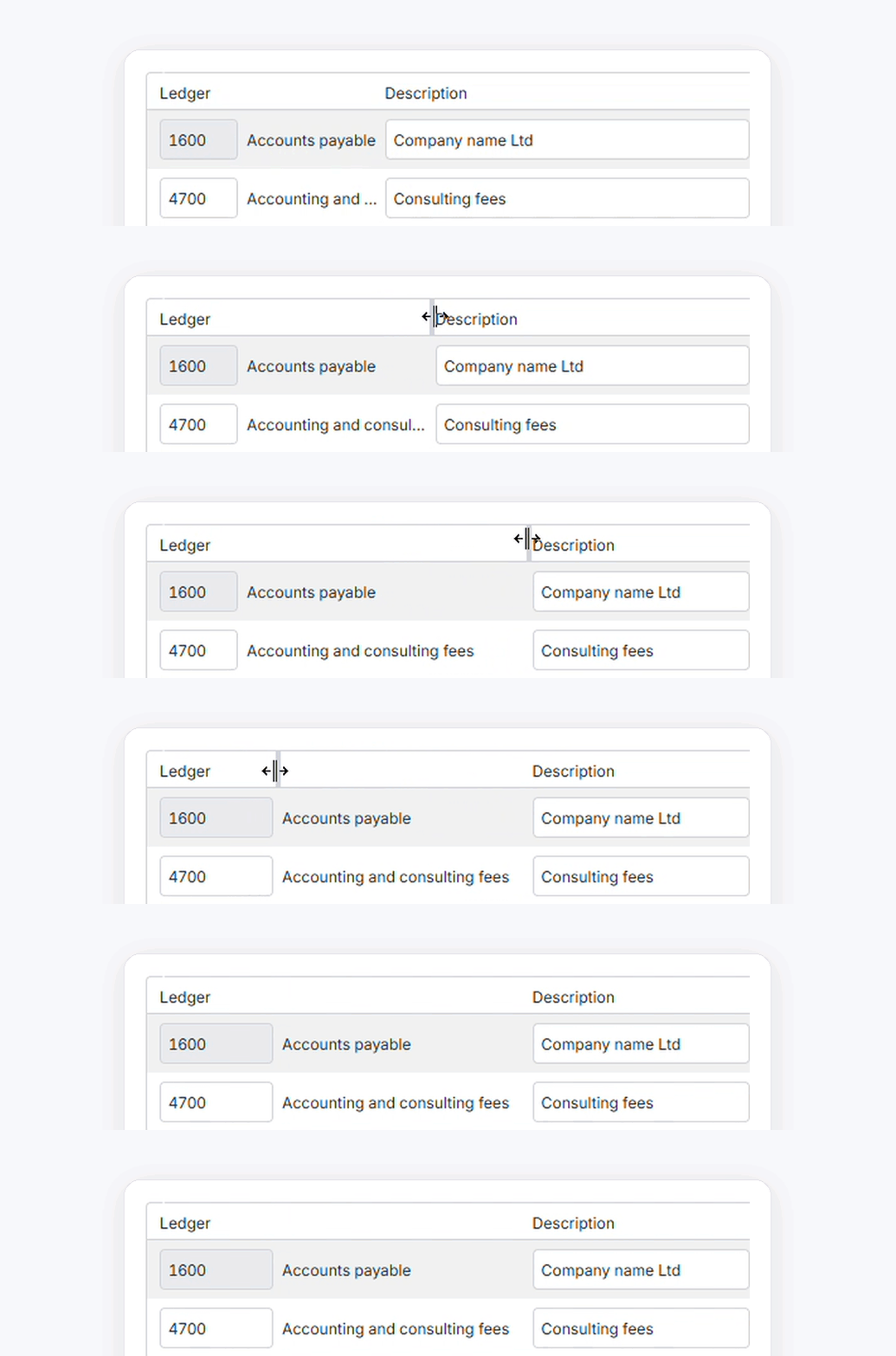
In the Check screen, you can also arrange the columns of the entry lines and adjust their width the way you want. This gives you the information you need to review a document at a glance.
Other improvements
TriFact365 has a new font in the portal. This font is designed specifically for use on screen, which makes text and amounts easier to read.
You can now also use the company switcher with your keyboard, so you can switch between companies faster.
In English, German, Spanish and French, TriFact365 now consistently uses standard accounting terms.
The Underway status is now called Unposted. It shows documents that your accounting package was unable to post. You can resend them or retrieve them to make changes
Bug fixes
When deleting a connection or user, no error message was shown if something went wrong. (FIXED)
When adding a connection with Exact Online, countries were not displayed correctly. (FIXED)